TikiLIVE Broadcasting Community – Optional Modules
Eyepartner, Inc. has broken new ground in High Definition streaming video solutions and built strong relationships with clients in the entertainment, media, publishing, education, and financial services industries. At the leading edge of online media and social networking, Eyepartner continues to offer outstanding services to all of its clients as well as the users of its many business and technological infrastructure solutions.
To name but one example of Eyepartner’s recent innovations, the video sharing and social networking community TikiLIVE has made enormous strides in allowing users to upload and broadcast HD content as well as create their own customized web portals. In addition, TikiLIVE also makes streaming HD content extremely affordable. Furnishing a set of flexible yet powerful tools, TikiLIVE is now in use by entire communities to save costs while sharing vital information.
Here are the Optional Modules available for TikiLIVE:
1. Pay Per View
This module allows the broadcasters to set content as Pay Per View. The Pay Per View feature grants the ability to bring in revenue from ticket sales for both Live shows and Videos On Demand.
Features:
- Set Ticket Price for Live Event
- Set Ticket Price for a Video On Demmand
- Specify admin cut of ticke sales
- Advanced analytic reporting of ticket sales and revenue
2. Package Management
This module allows the site admin to Sell Broadcasting Packages to their Users. Monetize the site by charging content producers based off bandwidth, storage and viewerbase.
Features:
- Create and Edit Broadcasting Packages limiting users:
a. Bandwidth
b. Server Storage
c. Simultaneous Viewers
- Monthly Based Subscription Billing
- Ability to charge an Account set-up Fee
- Allow Broadcasters to purchase additional Bandwidth
PACKAGE MANAGEMENT MODULE DETAILED
3. Advertising Management
The Advertising Management module allows the site owner to monotize their network by inserting both video and pop-up ads directly in their players.
Features:
- Create Individual Campaign
- Load Multiple Video and Pop-Up Banners within a Campaign
- Designate the priority level and distribution of a Banner
- Set the date which a particular Campaign will run
- Link Banner ads to destination URL’s
- Advance Analytics tracking impressions
4. Channel Manager
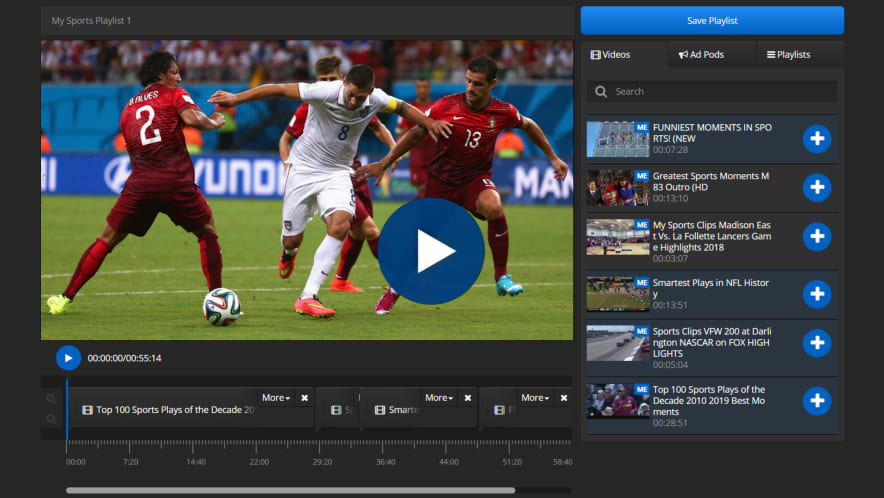
The “Channel Manager” allows users to publish video and audio into playlists, complete with integrated advertisements, by seamlessly dragging and dropping content into the channel lineup.
Features:
- Upload and play-out your VOD content as a linear “TV like” schedule from VOD server
- Utilize Entire Media Gallery or Even 3rd Party Content such as YouTube in your Channel
- Playout your Media Playlist
- Ingest Commercials to Monetize your Playlists!
5. Monster Encoder
Monster Encoder is a professional tool that converts video files into Flash Compatible Video format. You can easily upload and encode various file types into multiple end formats from anyplace with a connection to the internet.
Features:
- Converts all major types of movie files (AVI, MOV, WMV and MPG 1, 2, 4) into flash format.
- Capable of converting between any formats listed above, including iPOD/iPhone files.
- There is no limitation on file size that you can convert.
- With no upload limits you can upload as many video files as you want.
The Eyepartner development team is able to build or expand your solution into many directions whenever you’re ready. For more information you may check www.tikilive.org or just CONTACT US.
TikiLIVE Package Management Module
In 2008, Eyepartner launched TikiLIVE, which offers extraordinarily innovative streaming video. Moreover, features like blogging, live chat, and other social networking tools are built into its platform. TikiLIVE users can also monetize their content and keep track of revenues through the solution’s easy-to-use analytics.
TikiLIVE platform owners can actually create and manage streaming packages from the administration panel if they have the Package Management Module installed. The first step that you need to do in order to edit user’s package, you have to login into the admin area of your TikiLIVE solution. Now you are ready to access the Packages Menu.
This module allows the site admin to Sell Broadcasting Packages to their Users. Monetize the site by charging content producers based off bandwidth, storage and viewerbase. By creating specific packages the Admin can set up a pricing structure that works for smaller or professional studios. You can assign one of the existing packages to your broadcasters or create a custom package for their needs. See below how the Packages Page looks like:
General Features:
- Create and Edit Broadcasting Packages limiting users:
A. Bandwidth
B. Server Storage
C. Simultaneous Viewers
- Monthly Based Subscription Billing
- Ability to charge an Account set-up Fee
- Allow Broadcasters to purchase additional Bandwidth
For each package you as admin are able to:
● view and edit the price of the package, in USD
● view and edit the number of included viewers for the package
● view and edit the number of included storage (GB) for the package
● view and edit the number of included bandwidth (GB) for the package
There is a particular case when you want to modify a user package. If the user has a paid subscription in place when the admin wants to edit the package, then the admin will not be able to modify the package assigned to that user.
Here is how the Bandwidth Packages page looks like:
Braodcasters can subscribe, upgrade packages and purchase additional bandwidth on the fly to make sure that their broadcasting package is exactly what they need. With a core system based off PayPal’s subscription-based API, a TikiLIVE Network ensures that all payments are made securely and on time.
Front End Packages Page
Alongside its work with TikiLIVE, Eyepartner is also responsible for a broad range of other Rich Internet Applications, Software as a Service (SaaS), and Enterprise Systems, including JamOnCam, MonsterEncoder and StreamingBase. For more information about the Eyepartner suite of products and services and their many groundbreaking uses, visit www.eyepartner.com
The Eyepartner Team
Embed Resolutions Management on TikiLIVE Live Streaming Software
Over the years, Eyepartner has been responsible for products like JamOnCam, MonsterEncoder, StreamingBase, and TikiLIVE.
TikiLIVE in particular has earned rave reviews from entire communities, as well as individuals, for its ability to deliver low-cost, high-quality streaming content. On TikiLIVE, every user has the ability to produce and manage video content through a fully customizable web portal. TikiLIVE also empowers users to add as many channels as they would like to their web portals and to monetize their content.
Today’s feature is the embed resolutions mangement which actually allows you to modify the video player’s size. You can then embed it into a specific website or blog. In order to modify the embed resolution you need to go access a channel page. Here is how the option looks like:
By accessing a channel page and clicking on “Customize stream embed code” you can view the embed player available sizes then select the one you consider appropriate for your needs. There is an option to select from pre-defined sizes or you can enter custom values to modify the width and height of the embed player.
Here is how the player looks like on a 330X380 size:
Video player on 400X300 size
Video player on 640X480 size
This is just one of the many other popular features a TikiLIVE network can offer. A complete introduction to TikiLIVE and its functions can be found at www.tikilive.org. Also marketing and brand building is a snap with this solution since a TikiLIVE customizable web portal comes complete with analytics that track viewers habits.
For additional information about TikiLIVE and the full range of Eyepartner’s professional streaming solutions don’t hesitate to CONTACT US !
The Eyepartner Team
Content management system on TikiLIVE
In 2008, Eyepartner released TikiLIVE, a program that has since become known as the company’s flagship product. TikiLIVE appeal both individual and corporate users. Using the most advanced High Definition streaming technology, TikiLIVE allows users to broadcast their own content through a fully customizable portal. With space and potential for an unlimited number of channels, TikiLIVE also enables users the ability to display their content through integration with social networking platforms such as Twitter, Facebook, and YouTube. Featuring multifaceted tracking tools, full content management system and analytics, TikiLIVE has proven to be a valuable asset in niche and direct marketing.
We will detail below more about the CMS features included on TikiLIVE. The CMS admin area contains the following pages:
1. Static Pages Editor – in this page the admin can view and edit the static pages of the TikiLIVE system.
A Static Page is a standard web page which can be customized using HTML code. You can also add embedded code. These pages will be listed on the front-end area of the TikiLIVE system, after you will attach them to a menu – using Menu Editor option.
Here is how the Static Pages Editor webpage looks like:
2. Menu Editor – in this page the admin can edit the links located in the footer of the TikiLIVE system. They are classified into predefined menus. When you will access the menu editor page, it will look like:
From the drop-down menu you can select the menu to be edited. The following menus are predefined when you purchase a TikiLIVE system:
• Backoffice Footer – click HERE to view the links that belongs to this menu
• Help – click HERE to view the links that belongs to this menu
• Info – click HERE to view the links that belongs to this menu
• About Us – click HERE to view the links that belongs to this menu
3. Website Banners – in this page the admin can manage the banners that will appear on the front-end area of the TikiLIVE system
From the drop-down menu you can select to edit an existing banner. By default you have the following banners installed into a TikiLIVE solution:
A. Homepage Medium Rectangle banner – click HERE to view the details of this banner
B. Homepage Wide Rectangle banner – click HERE to view the details of this banner
After you add a banner or edit an existing banner from the Website Banners list, you need to go to Templates Manager and integrate the banner into the desired page. Click HERE to view the steps you need to follow in order to integrate the banner on a front-end page.
4. Templates Manager – from this page the admin can edit the look of the TikiLIVE site – click here to access this page
A web site template is just an HTML file that contains the common elements that appears on every page. That can include for example the navigation links, artwork, a search field, legal text.
Here is how the Template Manager page looks like on TikiLIVE:
When we want to edit what is displayed in a page we have in fact 3 tools do achieve our goal:
A. Change texts (using admin menu -> CMS -> Dictionary editor)
B. Edit html of that page (using admin menu >CMS ->Template editor)
C. Edit css (using admin menu >CMS ->Template editor)
To learn how to add or modify the templates on TikiLIVE click HERE.
5. Announcements – in this page the admin can manage the site announcements. Here is how the admin page looks like:
Further information about Eyepartner is available at www.eyepartner.com. To learn more about TikiLIVE, visit www.tikilive.com and www.tikilive.org; the latter site lists tech specs, contact information, and a complete outline of TikiLIVE’s many features.
Monster Uploader on TikiLIVE – Live Streaming Software
TikiLIVE, Eyepartner’s latest product, implements the company’s patent-pending High Definition Live Stream technology. Launched in 2008, TikiLIVE takes social networking media to the next dimension. TikiLIVE allows users to create, record and upload their own videos through customized web portals. Additionally, TikiLIVE lets users embed their content in a variety of websites, including MySpace.
On TikiLIVE users are able to publish and monetize their content. The easiest way to upload videos (larger than 128 MB) is with the Monster Uploader. The video formats supported are FLV and MP4.
The Monster Uploader can be used as a browser based application or you can install it into your computer and use the desktop application. We will detail the desktop application, with the note that the web application works and looks the same.
In order to install the desktop application you will need to access the web based application, right click on the Uploader application and select “Install Uploader Application” onto this computer. See HERE how to do that. The following pop-up screen will appear:
After you log in here are the steps you need to follow for uploading content into your TikiLIVE account:
1. Add a video to the uploading list:
Please take a look at the Video brief details panel after you selected a movie and added to the list and see if all the fields are completed there. If it isn’t so then most probably the movie cannot be uploaded
2. Select the video’s Output Type: Select Upload Only
3. Click the START button to upload your video
Depending on the size of the video and on your internet connection, the upload process may take a while. You can cancel the upload anytime by pressing the ABORT button. When the upload process is completed, a pop-up window will inform you. The new uploaded video can now be seen under “My Videos” in your TikiLIVE Dashboard.
Check on the following link for a full tutorial about how to install and use Monster Uploader: UPLOADER TUTORIAL
For more information about how to publish your content on the web and the full range of Eyepartner products don’t hesitate to CONTACT US.
The Eyepartner Team
Monetizing content with Pay Per View
Created and licensed by Eyepartner, a cutting-edge global information technology solutions company, TikiLIVE furnishes the infrastructure for streaming HD video social networking. Users develop their own web portals on TikiLIVE, sharing, managing, and monetizing their content. With the introduction of TikiLIVE, Eyepartner enables almost anyone to launch his or her own web network—one of the web’s most exciting new developments.
Currently there are three ways to make money off a TikiLIVE Network:
1. Selling Broadcasting Subscriptions
2. Charging for content set as Pay Per View
3. Integrating Advertisments with your players.
Monetizing content on TikiLIVE
Speaking about the Pay Per View feature, this grants the ability to bring in revenue from ticket sales for both Live shows and Recorded or Uploaded Videos. Simply set the VOD or Scheduled Live Event price and publish the content. A broadcaster can schedule a reoccurring event so users can tune in multiple times per week to view the live show for a set fee.
Here is what you need to do for setting a price on a LIVE broadcast:
1. Create Channel – view HERE how to create a new channel
2. Create & Set Event Price – view HERE how to create a new event and set the admission price for it
3. Start Earning Money
Setting a LIVE event price screenshot
To set a VOD price make sure you follow these steps:
1. Upload Video – view HERE how to upload a new video
2. Set Video Price – view HERE how to set the admission price for the video
3. Start Earning Money
Setting a VOD price screenshot
The users buy tickets through a secure merchant processor all the while earning the site admin a published “cut” of the profits. Admin then simply sends the broadcaster a check at the end of each payment period for they money they made off their content.
The following video presents the steps you need to follow in order to monetize content on a TikiLIVE professional streaming Network:
Alongside its work with TikiLIVE, Eyepartner is also responsible for a broad range of other Rich Internet Applications, Software as a Service (SaaS), and Enterprise Systems, including JamOnCam, Monster Encoder, and StreamingBase. For more information about the Eyepartner suite of products and services and their many groundbreaking uses, visit www.eyepartner.com.
The Eyepartner Team
The Add Roll System on TikiLIVE
Dedicated to its clients’ success, Eyepartner, Inc. has been lauded as a cutting-edge software developer for more than a decade and a half. Eyepartner works with clients to design and implement streaming media, video, and related solutions, offering industry insight and experience very few companies can match.
Another Eyepartner innovation is the Ads System Module an SAAS Module (Software As A Service) offered for the TikiLIVE platform owners. The module is delivered onto our domain and will be accessed by each client through his own unique login username and password.
The main reason the system was set up as a center console solution was to create a central distribution system that can be monitored and AUDITED by third parties, such as Google. It works in much the same way that Double Click works. When the client uses the DART system he uses the DoubleClick servers as these are audited by the third parties. With this module Eyepartner makes monetizing content simple by offering pre-roll video ads and pop-up image ads.
Ads Module is built so that a user sees a pre-roll campaign 1 time at 20 minutes (no matter what link/browser the user opens). If you want to test all the module usability and not wait for the 20 minutes session to complete, make sure you clear cookies from the browser before you reopen each link on the platform where Ads are installed.
This is how the Pre and Post-Roll Ad will be displayed on the player:
Every change you save in your ADMIN account (on ads.eyepartner.com) will be visible on front end in 20 minutes after you change it.
This is how the Middle-Roll Image Ad will be displayed on the player when you are watching a channel:
This is how the Middle-Roll Text Ad will be displayed on the player:
To watch a complete Ads Module tutorial please click HERE. If you want to install this module on a TikiLIVE platform please CONTACT US for more information.
For clients interested in monetizing their content, TikiLIVE provides advertising solutions and analytics. TikiLIVE’s detailed tracking allows users to get to know their viewers by location and viewing habits, ideal for niche marketing. For more information about the Eyepartner suite of products and services and their many groundbreaking uses, visit our corporate website www.eyepartner.com
The Eyepartner Team
Channel Subscription On TikiLIVE
To name one example of Eyepartner’s recent innovations, the video sharing and social networking community TikiLIVE has made enormous strides in allowing users to upload and broadcast HD content as well as create their own customized web portals. In addition, TikiLIVE also makes streaming HD content extremely affordable. Furnishing a set of flexible yet powerful tools, TikiLIVE is now in use by entire communities to save costs while sharing vital information.
We just added a new feature which is the Channel Subscription. This allows broadcasters to monetize their streams on TikiLIVE. If the channel is set as “paid” then viewers need to get a monthly membership. For accessing the content they can subscribe to a channel or can pay for a particular video (video on demand). It’s just a matter of seconds to set your channel up and earn money.
First you need to access the “My Channels” page:
Within a TikiLIVE network, users can establish an infinite number of channels and collaborate with Eyepartner’s staff to design their own custom web portals. Eyepartner also makes monetizing content simple by offering pre-roll video ads and pop-up image ads.
The next step is to choose the channel type: Free or Channel Subscription.
Set the price for the monthly channel membership.
Set the price for the VOD files you uploaded or recorded into your TikiLIVE account:
TikiLIVE is also fully integrated with social media sites like Twitter, Facebook, and Myspace, and users can profit from their content by monetizing it. Even nonprofit and community groups have encountered immense success by setting up their TikiLIVE portals to accept donations.
Here is how the page looks like when a user wants to subscribe to one of the channels:
And here is the page for VOD subscription:
However, TikiLIVE represents only part of Eyepartner’s diverse set of solutions. Eyepartner also specializes in learning management systems, advanced security and surveillance systems, video on demand, custom IPTV systems, and a number of other technologies.
To learn more about Eyepartner and its many projects, visit OUR WEBSITE. Product specifications for TikiLIVE are available at www.tikilive.org
The Eyepartner Team
TikiLIVE New Video Player: Live Stream Now!
TikiLIVE development group Eyepartner designs, builds portals and custom players according to your requirements. Start with one of our stock designs or allow us to create something very unique to extend your brand.
Eyepartner has many years of experience in designing and building custom video players. No matter how complex the project, we can help you get started with an engaging new broadcasting web portal
The latest development is an amazing video player having a lot of features, so you can offer your audience the best streaming experience.
The Newest TikiLIVE Video Player
A Chat feature is available so you can now easily get in touch with your audience and share exciting news. Some of the included features are: list users, choose text color, private conversations and context menu on users levels (kick, ignore, ban, silent ban).
The Twitter Option allows one to log in into his Twitter account then be able to see and write comments related to that specific show
Users establish a dynamic presence in the TikiLIVE community and bring in viewers through integration with Facebook, Twitter, MySpace, and virtually any other web platform. Moreover, social networking tools like chat, messaging, and blogging are built into TikiLIVE, allowing viewers to comment on video they see in real time.
● The Embed Code Option allows generating the embed code to be used by one willing to present current player view on different sites.
● VOD List Option is a graphic list displaying a set of videos filtered per Chanel Owner automatically and per Categories Filter controlled by User.
● Live Channels List Option is a graphic list displaying a set of live channels filtered per Chanel Owner automatically and per Categories Filter controlled by User.
The Cinema Mode is another interesting feature we just added to the video player. This allows viewers to access a virtual cinema where the feed is extended to 21:9 format. To access this feature you need to click the top right button on the video player. Please see the image below:
You’ll be next prompted to the lobby where you have to select an avatar in order to access the cinema mode.
Finally here is how the TikiLIVE video player looks like in Cinema Mode. You will also be able to chat with other members watching the same video.
You can see below the video player running an HD sample encoded with our Monster Encoder application:
To view Eyepartner’s company profile or obtain more information about TikiLIVE and other professional products and services, visit www.eyepartner.com
The Eyepartner Team
News Ticker On TikiLIVE – Live Streaming Solution
TikiLIVE is about interacting and connecting directly with your audience. That is why we are constantly adding new and exciting features to bring the streaming experience to the next level. One of the latest features we added on the platform is the News Ticker.
The News Ticker is a little program which scrolls the contents of a text file above the player on your channel page. The text appears in a so-called “appbar” which is similar the the Windows Taskbar. Any text line (using this format: „date [url] body of news”) can be dropped on the ticker and the program will begin to scroll that file’s contents.
To access and enable or disable the News Ticker option you need to login into your TikiLIVE account. If you don’t have an account yet you may sign up in a few seconds HERE.
The next step is to access your DashBoard and select the Edit Channel option from the Channels Menu. See the screenshot below:
You can easily turn the News Ticker ON or OFF and select from a drop-down menu hot the text will appear: from the left or from the right. Here is how the text can be inserted.
Note: In order to preview the News Ticker you need to save the channel details and click on Go To Channel button to view the changes made on the channel page.
News Ticker Preview
This is how the channel page looks like when the News Ticker text will appear from the left:
This is how the channel page looks like when the News Ticker text will appear from the right:
TikiLIVE broadcasters can depend on Eyepartner for serving their streams on a 24/7 basis. We specialize in managing your HD LIVE streams across our fault tolerant managed dedicated network. If you have a streaming network of your own, we can assist in loading the TikiLIVE solution at your location with a full list of features and modules included.
KEY BENEFITS OF A TIKILIVE NETWORK
• Easily brand connect, manage and monetize your HD content
• Realize immediate viewer habits and click-thru statistics from every channel
• Create direct marketing content for niche marketing
• Produce and promote your events, sponsors or products using pre, mid, and post-roll overlays
• Allow for uploading, storing and managing your network of digital video inventory
• Create audience buzz with the viral marketing add-ons
• Build an interactive broadcasting network community under your brand
• Produce LIVE or on-demand delivery services through your network
• Upload, Transcode and deliver HD or SD video on demand
• Create themed channels, ingest commercials and publish to your network
How TikiLIVE Works
To learn more about the features please have a look HERE or Contact US.
The Eyepartner Team